


Passwords & passkeys-Safe
4.41.68K Reviews
App Specs
- Version
- Varies with Device
- Updated On
- License
- Free
- Downloads
- 5,000,000+
- Developer
- SafeInCloud SAS - Password Security
- Categories
- Productivity
- Platform
- Android
Screenshots
 Analysis by AppCompare
Choosing a password manager is less about collecting features and more about finding one you will actually use whenever a login gets awkward. I see Passwords & passkeys-Safe as a practical option for people who want a central place for credentials, passkeys and other private details, without turning everyday sign-ins into a project. It is a productivity app from SafeInCloud SAS - Password Security, and its built-in authenticator and Google Drive backup give it a broader role than a simple password notebook.
Your Digital Vault
First off, let’s talk about how this app acts as a digital vault. You know those moments when you just can’t remember if your password was ‘password123’ or ‘password321’? Well, it wipes those worries away. With its intuitive interface, storing and retrieving passwords becomes a breeze. You just need to set up a master password or passkey, and voilà, all your credentials are locked up more securely than Fort Knox.
Getting Started and Recovery
Setting up was a walk in the park. The app guides you through creating your master password, and it even suggests strong passwords if you’re feeling uninspired. What’s cool is that it supports biometric authentication. So, if you’re too lazy to type out your master password (like I often am), your fingerprint or face recognition will do the trick.
There is one trade-off I would take seriously: a password manager concentrates a lot of access in one place. Before moving everything into a vault, I’d make sure I can remember the master credential and understand how my backup fits into my recovery plan. Google Drive backup is useful if you need to restore your data, but a backup is only reassuring if you can still access the account holding it. I would not treat a cloud copy as a substitute for remembering the master password.
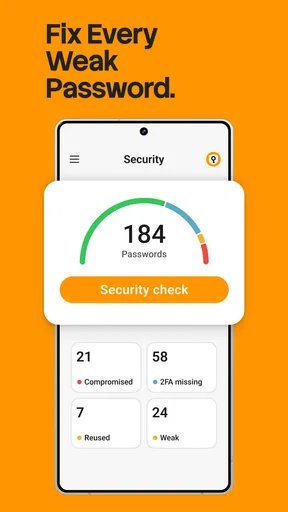
For someone switching from a browser’s saved passwords, I’d start with the accounts used most often rather than trying to reorganize an entire digital life in one sitting. Add the main email account, banking and shopping logins, then use the app’s password suggestions when changing weak or reused credentials. That gradual approach makes it easier to notice whether the sign-in and autofill routine works smoothly on the devices you rely on.
User-Friendly Interface
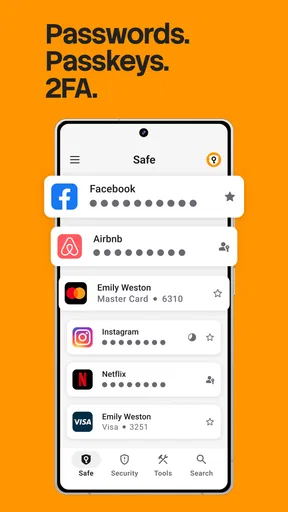
One thing I immediately noticed is how user-friendly the app is. The layout is clean and straightforward, with all your accounts neatly organized. You can categorize them into personal, work, or whatever suits your style. Everything is just a tap away, making navigation as smooth as butter.
Categories become more helpful when the vault grows. I would use a small, consistent set—personal, work, household—rather than inventing a label for every account. That keeps a quick search from turning into a filing exercise, especially when you are standing in a shop trying to retrieve a loyalty login or helping a family member find a shared household account. Secure notes can hold details that belong beside a login, but I’d avoid putting unrelated sensitive information everywhere just because the vault is convenient.
Worth Reading Before You Choose

EA SPORTS FC Mobile 26 Is a Bigger Football Game, but It Takes Time

Flipboard Shows What News Apps Must Do Beyond the Feed

Switching to Android Auto Means Rethinking Your Driving Routine

Google Calendar Makes a Crowded Week Easier to Manage

Ludo King Makes the Most of the Minutes Between Plans

Baby Panda World Brings Quick Play to Modern Phones, but Its Game Library Feels Busy
Features That Stand Out
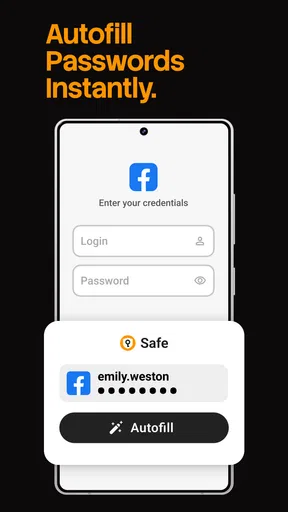
Now, let’s dive into the features that really make this app shine. Aside from the essential password storage, it offers secure notes, which are perfect for storing sensitive information that doesn’t quite fit into a password format. Plus, it automatically fills in login details for apps and websites, saving you time and hassle. I mean, who doesn’t love a bit of time-saving magic?
Autofill is the part I’d judge in ordinary use, not just by whether it exists. A login inside an app, a browser sign-in and a password change page can each behave differently, so it is worth trying the workflow on the services you use most. If a login does not fill as expected, having a copyable entry in the vault still gives you a fallback. I also like the idea of keeping a secure note for non-password information that repeatedly interrupts a task, rather than leaving it in an unprotected notes app.
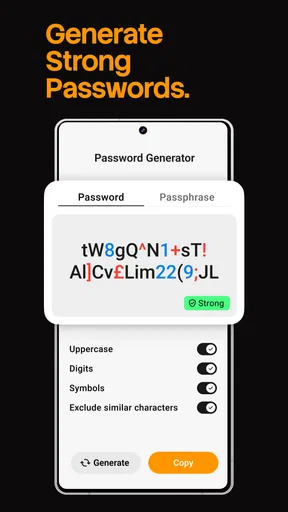
Another standout feature is the password generator. It’s like having a personal cybersecurity expert in your pocket, suggesting strong, unique passwords that are virtually uncrackable. And if you’re anything like me, you’ll appreciate the peace of mind that comes with knowing your accounts are locked up tight.
A useful habit is to let the generator make a different password for every account, then save each change immediately before leaving the site or app. That avoids the familiar trap of creating a strong password and forgetting to record it. The built-in authenticator is another reason to keep the vault open during account setup: when a service asks for an authenticator code, keeping credentials and authentication details together can make the process more convenient. The trade-off is that placing several pieces of account access in one vault makes protecting that vault especially important.
Passkeys and Everyday Sign-ins
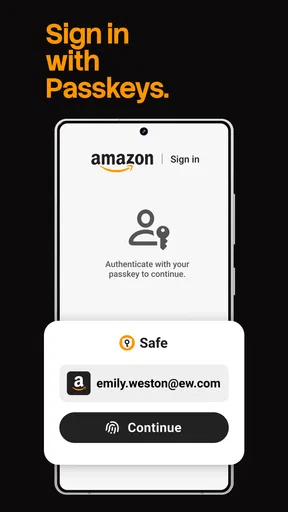
Passkeys make the app relevant to people who are beginning to move beyond traditional passwords, but they do not make every account or sign-in process identical. I’d use the vault for the credentials and passkeys it supports, while still expecting some services to rely on familiar password fields or their own sign-in prompts. If you share devices or regularly switch between platforms, test the accounts you depend on before assuming every passkey will behave the same way in every context.
A realistic day-to-day example is arriving at a new laptop and needing to sign in to email, a work service and a shopping account. With the vault available and synced, I can look up the relevant details rather than searching old messages or resetting passwords. If a site asks for an authenticator code, that built-in tool can reduce app-switching. The benefit is not that every login becomes instant; it is that I have one orderly place to check when a sign-in gets interrupted.
Sync Across Devices
In today’s multi-device world, syncing is a must. It syncs across your devices, whether you’re on Android or iOS. This means you can access your passwords anytime, anywhere, without missing a beat.
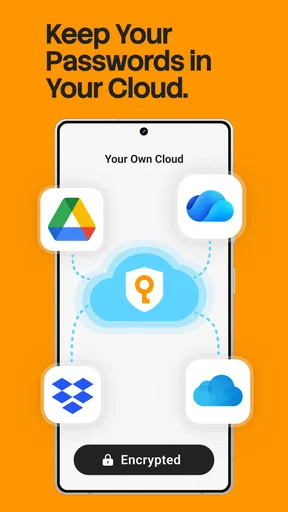
Google Drive backup is worth distinguishing from day-to-day syncing: backup is useful for keeping a restorable copy, while syncing is what makes the same working vault available across devices. I would check that both devices are signed into the intended accounts and that a recent change appears where expected before relying on a newly added credential away from home. That small test is particularly helpful after moving to a new phone, when you want to know the vault is accessible before wiping or setting aside the old one.
Compared with relying only on a browser’s built-in password saving, this app aims to keep credentials useful beyond a single browser workflow and adds secure notes, passkeys and an authenticator. A browser manager may be the easier choice if you want passwords tied closely to one browser and prefer not to maintain a separate vault. I’d choose this app when I want a more dedicated home for sign-in information and appreciate the backup option; I’d skip a separate manager if my needs are very light and the browser’s existing tools already fit my routine.
Security First
Of course, the core of any password manager is security. This app uses industry-standard encryption to keep your data safe from prying eyes. Not to get too technical, but it uses AES-256 encryption, which is basically the gold standard in the digital security world. Knowing that my data is locked down with such robust security makes me sleep a little easier at night.
Even with encryption, everyday habits still matter. I would avoid reusing the master password elsewhere, keep the device itself protected, and be thoughtful about where a backup can be accessed. Biometrics make returning to the vault less tedious, but I see them as a convenience for unlocking the app—not a reason to forget the master credential or ignore recovery planning. Those precautions are more valuable than adding every possible item to the vault on day one.
Speed, Stability and Device Fit
For a password manager, speed is mostly about avoiding friction: finding an entry, opening it and getting back to the sign-in you were trying to finish. The clean layout, categories and autofill are aimed at that kind of quick task. I would not expect a vault to eliminate every delay, since a website’s own login flow or a device’s autofill prompts can still interrupt the process. The practical test is whether the app makes common logins easier often enough to become part of your routine.
Heavy use is where organization and backup habits matter more than a long feature checklist. If you are storing personal and work accounts, notes, passkeys and authenticator-related details, a consistent naming and category system helps keep the vault manageable. I’d also verify a new entry on another device after syncing rather than assuming a change has traveled, especially before depending on it for an important appointment or work task.
It is a free app, rated for Everyone, with optional in-app purchases ranging from $0.99 to $159.99 per item. It has a 4.4 average from around 50,000 ratings and over 5 million installs, which suggests it has found a substantial audience, though popularity alone cannot tell you whether its workflow suits your devices. The app has been available since October 8, 2014, and I’d still make the decision based on the features and recovery routine you actually need, rather than its age or reach.
On performance, I’d call it a good fit for routine credential retrieval and cross-device access, with the usual caveat that the experience depends on how your own services handle autofill and sign-in. I would not choose any password manager expecting it to remove the need for a strong master credential or a sensible backup plan. If your phone is older or already crowded with apps, try the everyday tasks you care about before moving your entire collection; a password vault should make access feel calmer, not add another complicated routine.
Who It Suits—and Who May Prefer Something Else
I’d recommend it to someone who has accounts across work and personal life, wants passkeys alongside passwords, or would rather keep secure notes and authenticator access close to the vault. It is also a reasonable step up from a spreadsheet or a collection of notes, because those approaches make it harder to keep credentials organized and safely available across devices. The app’s productivity focus is apparent in that everyday role: it helps reduce the small interruptions caused by forgotten or scattered login details.
It may not be the right choice if you want a password manager that works entirely within one browser’s built-in system, or if maintaining a separate vault feels like more effort than your small number of accounts warrants. It is also a poor fit for anyone unwilling to protect and remember a master credential or to think about backup access. In those cases, a simpler browser-based option may be easier to stick with, while a different dedicated manager could suit someone whose top priority is a workflow or recovery approach they already know and trust.
Final Thoughts
So, what’s the final verdict? If you’re looking for an app that combines simplicity with strong security features, it’s a solid choice. It’s perfect for anyone who wants to keep their digital life organized and secure without a lot of fuss. Whether you’re a tech wizard or someone who’s just looking to ditch the sticky notes filled with passwords, this app has something for everyone.
In a world where our digital lives are more intertwined than ever, having a reliable password manager is crucial. With its user-friendly interface, robust security, and syncing, Passwords & passkeys-Safe is ready to handle all your password woes. Give it a try, and you might just wonder how you ever managed without it!
Pros
- User-friendly interface for easy navigation.
- Advanced encryption ensures data security.
- Supports multiple accounts seamlessly.
- Quick setup with intuitive features.
- Regular updates enhance functionality.
Cons
- Limited free version features.
- Occasional sync issues reported.
- No offline access for stored data.
- Customer support response can be slow.
- Requires internet for full functionality.
FAQs for Passwords & passkeys-Safe
What features does Passwords & Passkeys-Safe offer to enhance security?
Passwords & Passkeys-Safe provides a range of security features, including strong password generation, biometric authentication, and encrypted cloud storage. Users can also enjoy the convenience of autofill for logins and the ability to securely share passwords with trusted contacts. These features ensure both security and ease of use.
Is Passwords & Passkeys-Safe available on both Android and iOS platforms?
Yes, Passwords & Passkeys-Safe is available for both Android and iOS devices. The app is optimized for seamless performance on smartphones and tablets, providing a consistent user experience across different operating systems. Users can download it from the Google Play Store or the Apple App Store.
How does Passwords & Passkeys-Safe handle data privacy and protection?
Passwords & Passkeys-Safe prioritizes data privacy by using end-to-end encryption, ensuring that only users have access to their information. The app does not store any data on its servers, and all sensitive information is encrypted locally on the user's device. This approach minimizes risks related to data breaches.
What should I do if I forget my master password in Passwords & Passkeys-Safe?
If you forget your master password, Passwords & Passkeys-Safe offers recovery options such as using biometric authentication if previously set up. However, if these options are unavailable, recovering access might be challenging due to the app’s strong focus on security. It's recommended to store your master password securely elsewhere.
Are there any subscription fees for using Passwords & Passkeys-Safe?
Passwords & Passkeys-Safe offers both free and premium subscription plans. The free version provides basic features, while the premium plan unlocks advanced functionalities like priority support, additional storage, and enhanced security options. Users can choose the plan that best fits their needs and budget.


